
Getting Your Squad Into Ballr
Add your players once, properly, and every message and squad sheet after it takes care of itself.
Written for grassroots and Sunday league clubs moving a squad list off a spreadsheet or out of a group chat.

Who this is for
- New clubs setting up a roster for the first time.
- Secretaries who already keep the squad in a spreadsheet.
- Managers who want players to maintain their own details.
Before you start
- Your squad list, however you keep it now.
- Mobile numbers or email addresses for the players you want to message.
- Ten minutes — this is the one job worth doing carefully.
Walkthrough
Step by step.
- 01
Add a player by hand
Open Players and press New. A name is the only thing Ballr insists on. Position, squad number, date of birth and the rest can follow later.
Adding a player does not send them anything. Nobody is emailed, nothing is announced. You can build the whole squad on a Tuesday night and not have a single player hear about it until you are ready.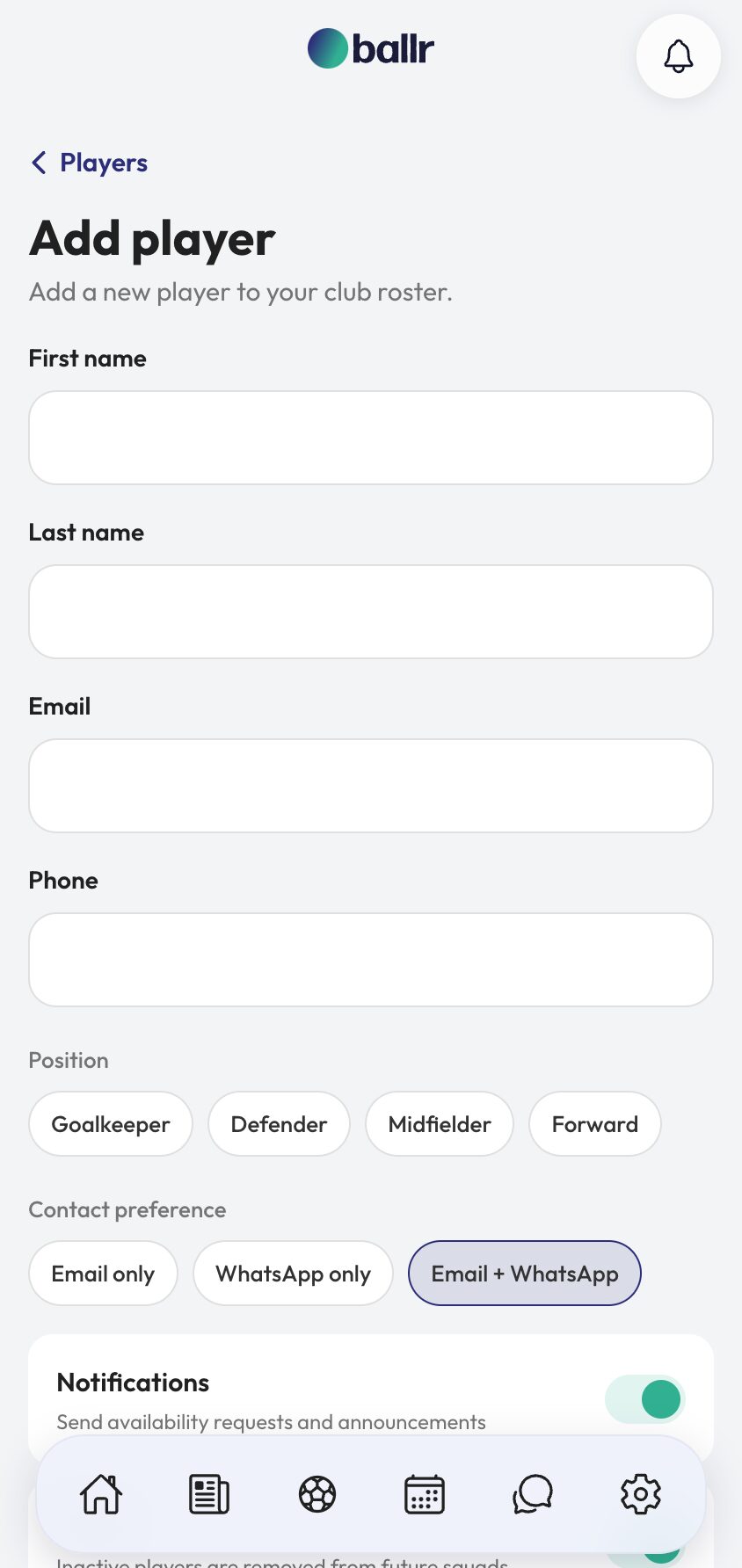
- 02
Or bring the whole spreadsheet
If the squad already lives in a spreadsheet, use Import instead of typing it twice. Ballr reads CSV, XLS and XLSX. One player per row, headings in the first row.
The only columns it needs arefull_name, orfirst_nameandlast_name. It will also takeemail,phone,date_of_birth,genderandpositionif you have them.
Nothing is created when you upload. The file is parsed for review and you confirm the rows first — including the ones it has flagged because a required column is missing.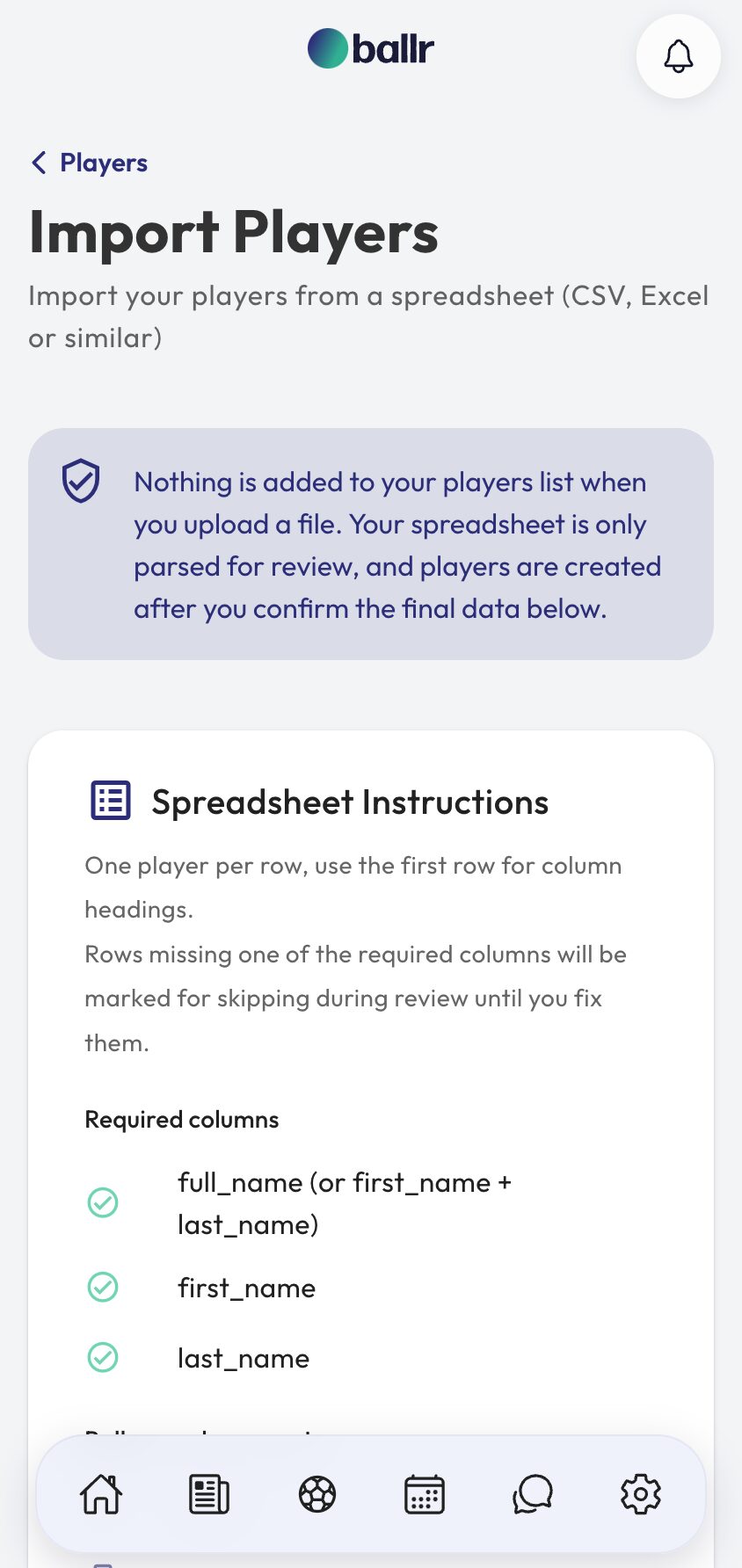
- 03
Get the contact details right
This is the step that decides whether the rest of Ballr works. Availability requests, reminders and squad news all ride on the phone number or email address on a player record — a player with neither is a name on a list and nothing more.
A mobile number is the more useful of the two, because it reaches players by WhatsApp. If you only have a parent's number for a youth player, use that: the ask still lands with somebody who can answer it.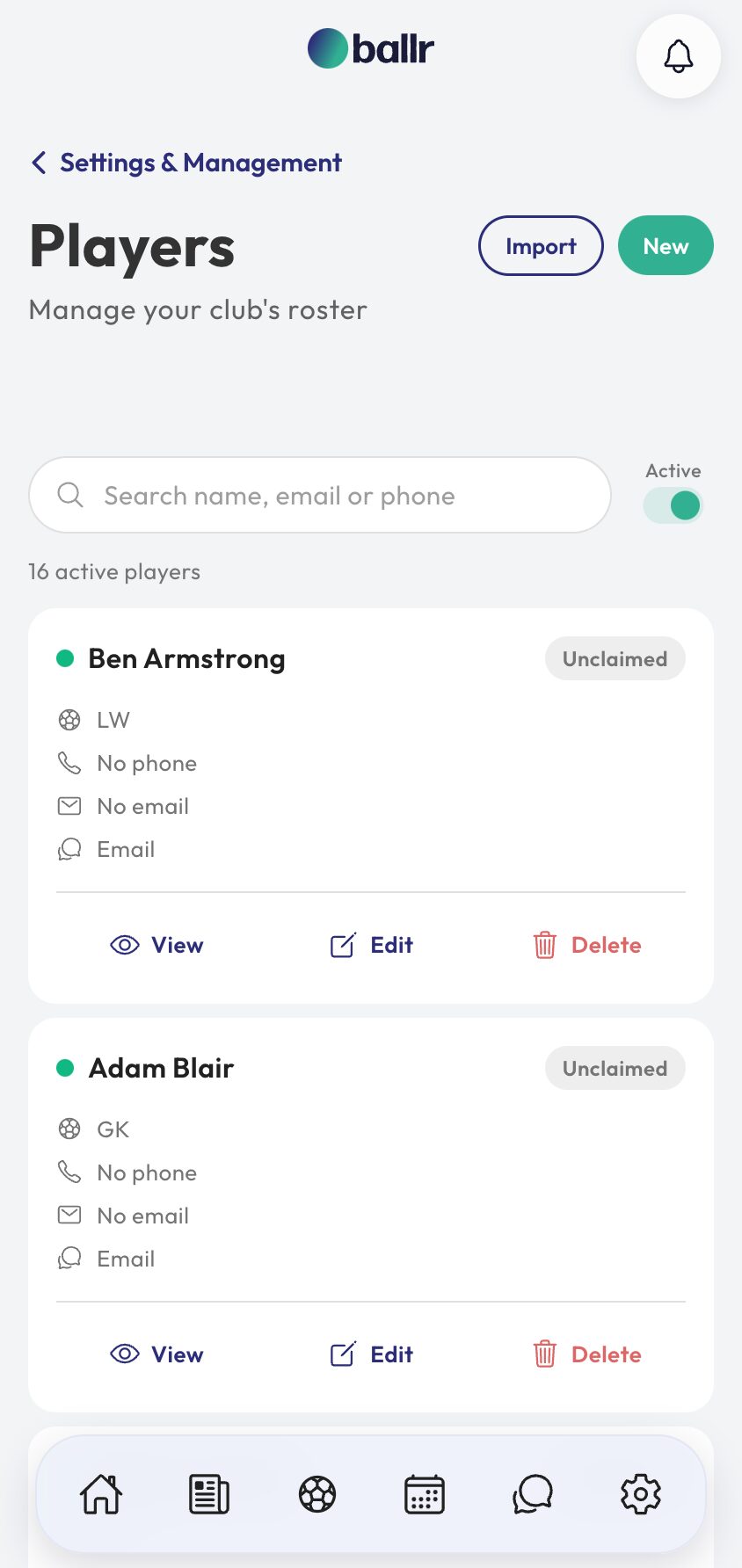
- 04
Let players claim themselves
Every player starts as Unclaimed — a record you keep on their behalf. When a player signs up and finds your club, they can claim their own profile, and you approve it.
From then on they maintain their own details, see their own stats and answer for themselves. You stop being the person who updates a phone number every time somebody changes provider, which over a season is most of them.
A squad in Ballr is what the rest of the club is built on — it is who gets asked in the weekly availability request, who you pick from at squad selection, and who appears in your season stats.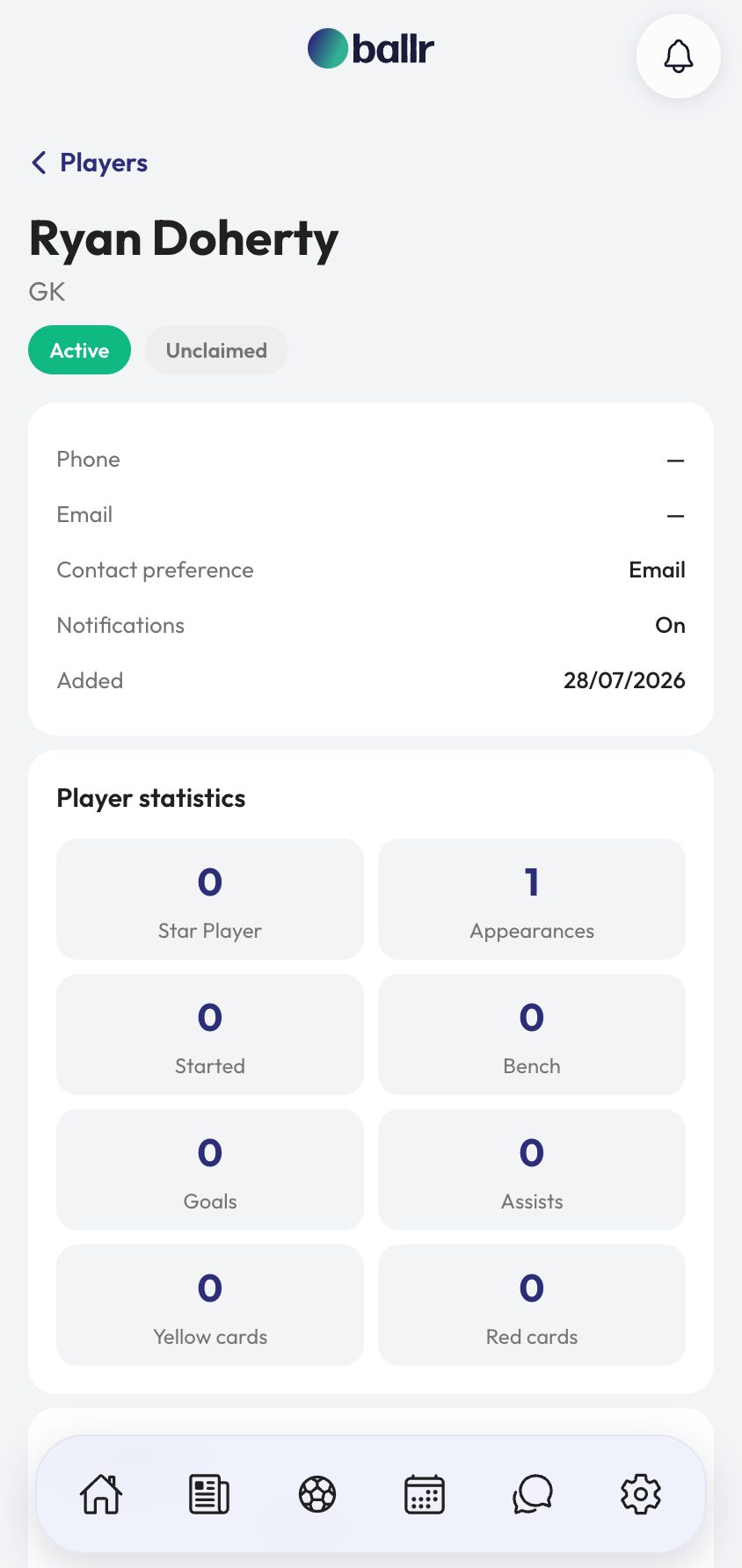


Video tutorial coming soon: importing a season's squad and handling the rows that need fixing.
Questions
About this
guide.
Do players get an email when I add them?
No. Adding a player is silent. They hear from Ballr the first time you send something — an availability request, a squad announcement — and not before.
What if my spreadsheet has extra columns?
They are ignored. Ballr looks for the columns it recognises and leaves the rest alone, so you do not need to strip a working spreadsheet back before uploading it.
Can I add a player without a phone number or email?
Yes, and for a lot of youth squads that is normal. They will appear in selection and stats like anyone else — they just cannot be messaged, so somebody has to ask them in person.
What happens to a player who leaves?
Mark them inactive rather than deleting them. Their goals, appearances and past squads stay attached to the seasons they played in, which is the whole point of keeping records.
Put it into action
Try it with your own squad.
Set your club up in about ten minutes and work through this guide with your real fixtures in front of you.