
Posting to Your Club Feed
One place your players, parents and supporters can look, instead of four group chats and a Facebook page nobody admins.
Suits Northern Ireland grassroots clubs whose updates currently live across three WhatsApp groups and a page only one volunteer can post to.

Who this is for
- Whoever ends up running the club's social media by default.
- Managers announcing squads, results and the things that change on a Friday.
- Clubs who want supporters and parents reading the same thing as the players.
Before you start
- Your club profile and badge are set up.
- Someone with posting permissions — see club roles.
- A rough idea of who you are writing for: players, parents, or supporters.
Walkthrough
Step by step.
- 01
See what is already being posted for you
Open Club Feed Posts. The list shows every post with its type, when it went out and who posted it — and some of them you did not write.
Fixtures post themselves, marked Auto-generated. That is deliberate: the routine content that keeps a feed alive is exactly the content nobody remembers to write, so it happens without you. Your posts are the ones marked Manual.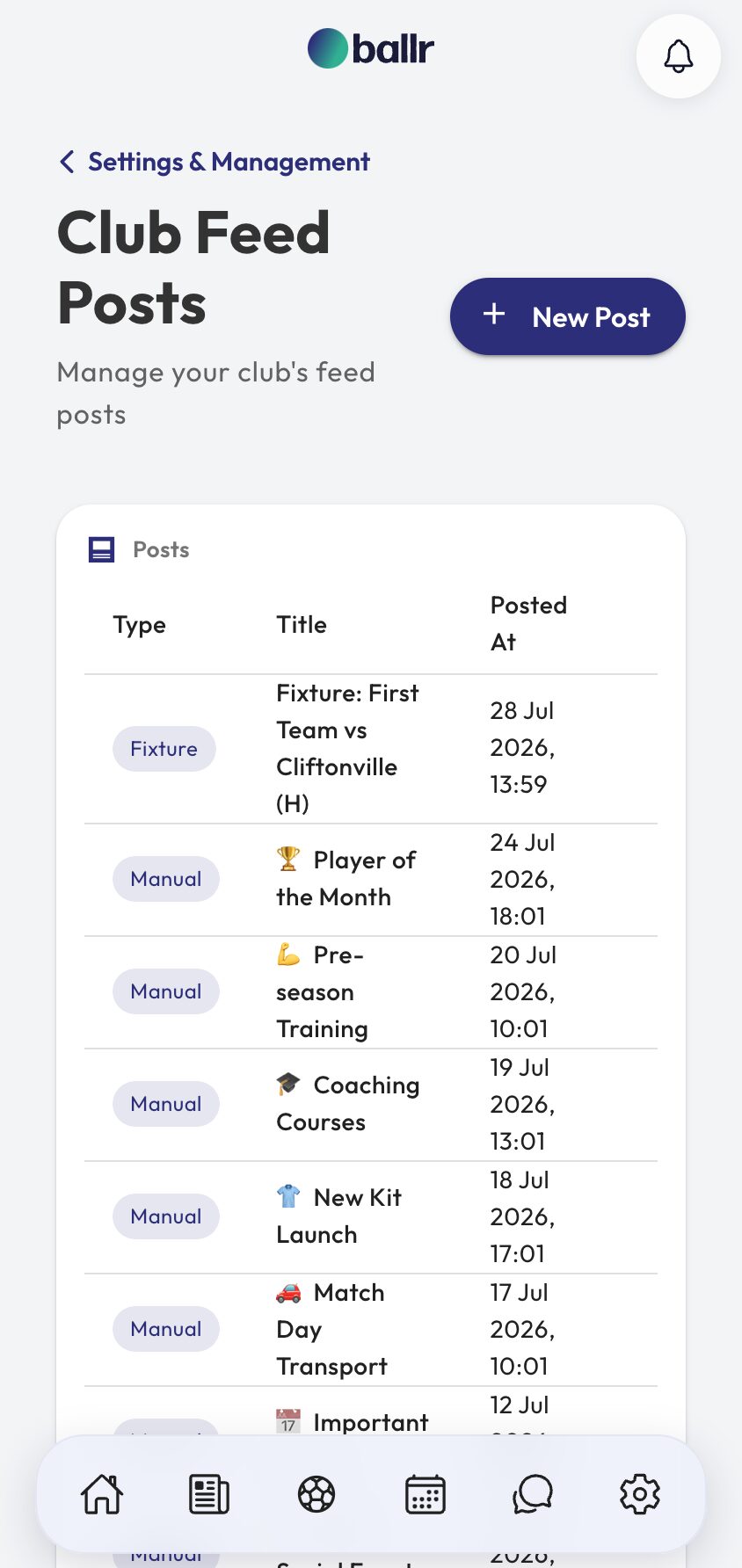
- 02
Write a post
Press New Post. The title is optional — a short post often reads better without one. Write the content, and add up to ten images at 5MB each, or embed a video from YouTube, Vimeo or Veo.
A preview builds beside you as you type, showing the post exactly as a follower will see it. Use it. Most posts that read fine in the box turn out to be three lines longer than they need to be once you see them in the feed.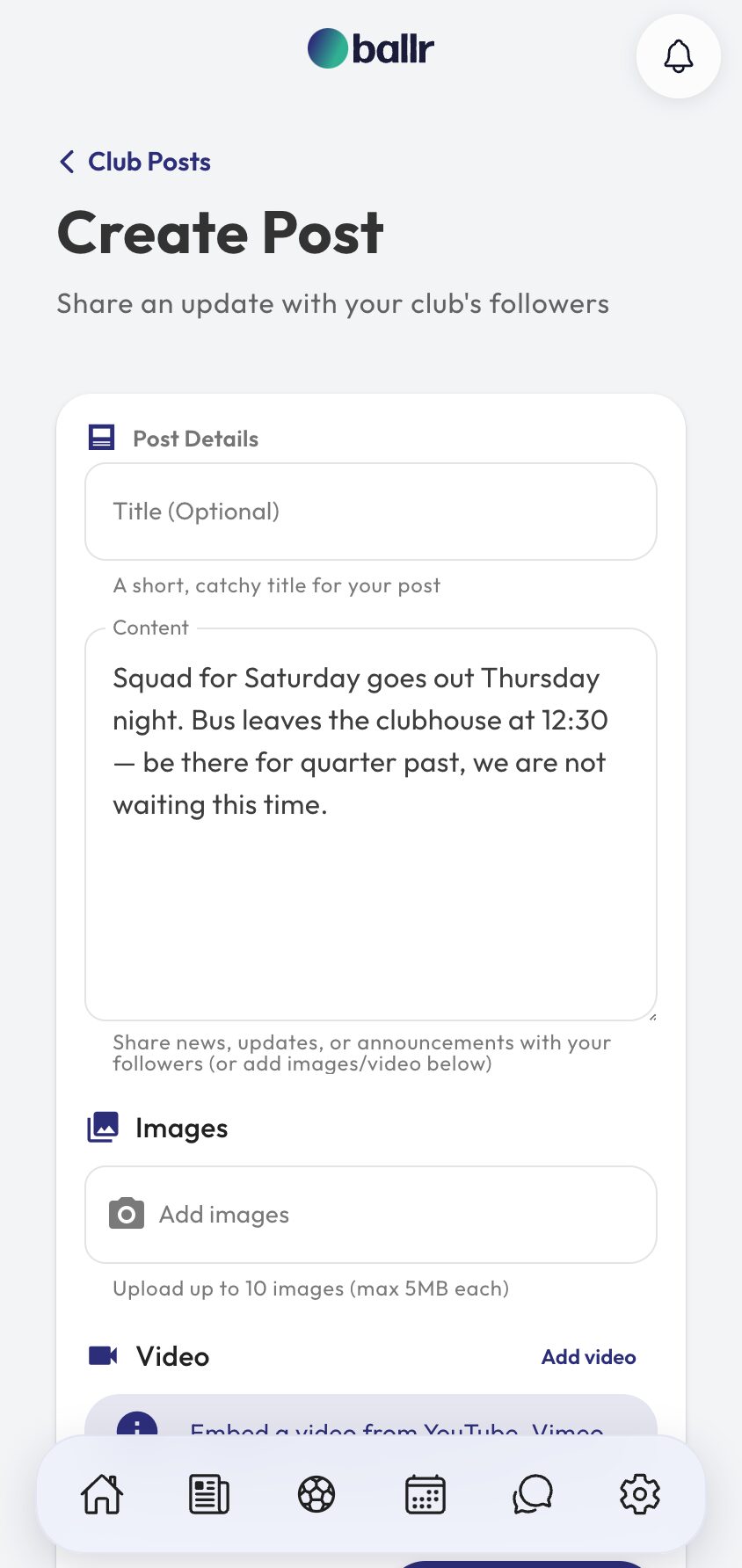
- 03
Publish, and know where it lands
A published post appears on your public club profile — visible to anyone with the link, no account needed — and in the feed of everyone following your club in the app.
That reach is the reason to keep committee business out of it. Anything you would not want a rival manager or a parent reading belongs in a squad chat, not here.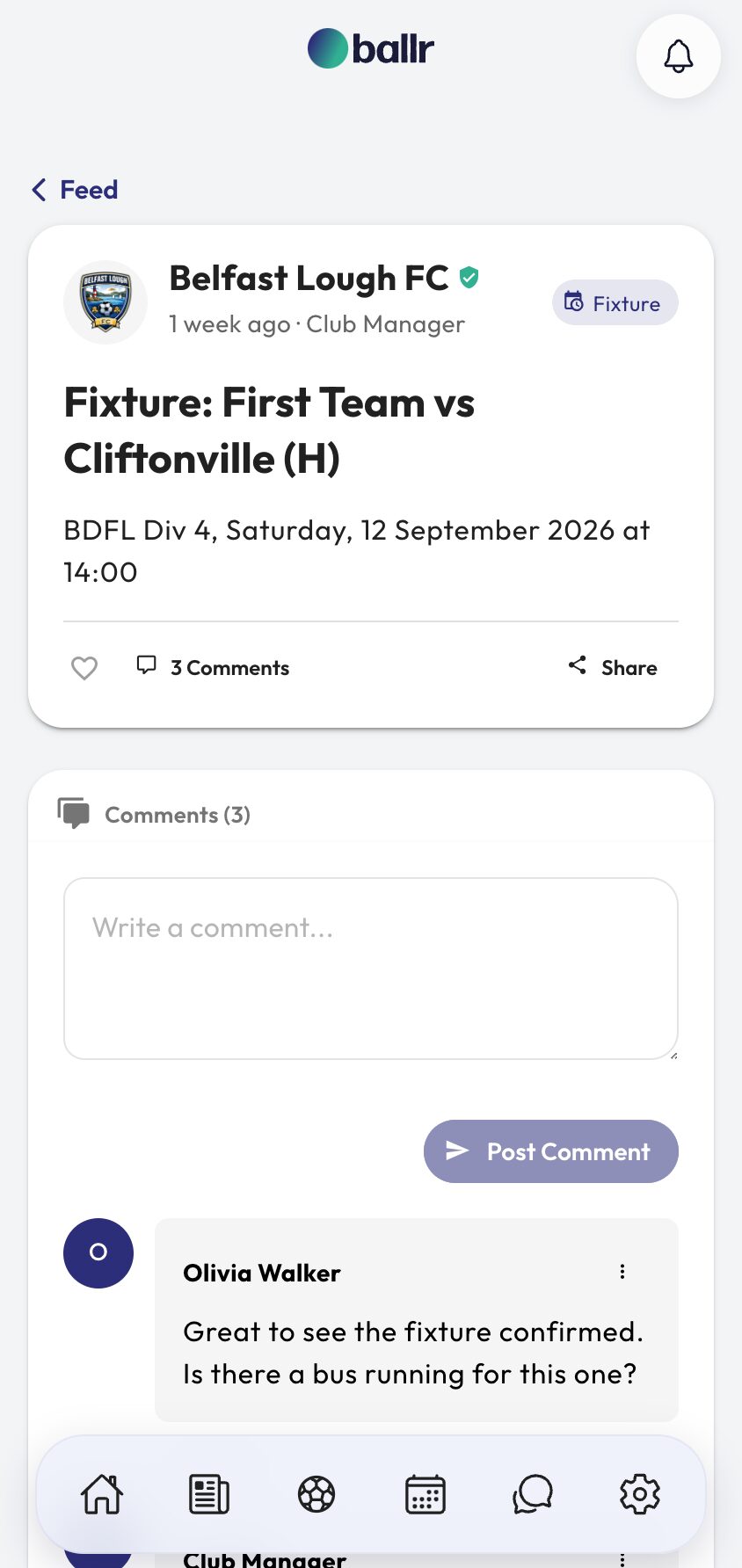
- 04
Let people reply
Every post takes comments and can be shared straight out to social. Followers reply under the post rather than in a chat you have to be in, which is how a supporter base talks to a club without twenty people needing each other's phone numbers.
Pair posts with your matchday graphics — a result post with the result graphic attached travels considerably further than the same words on their own.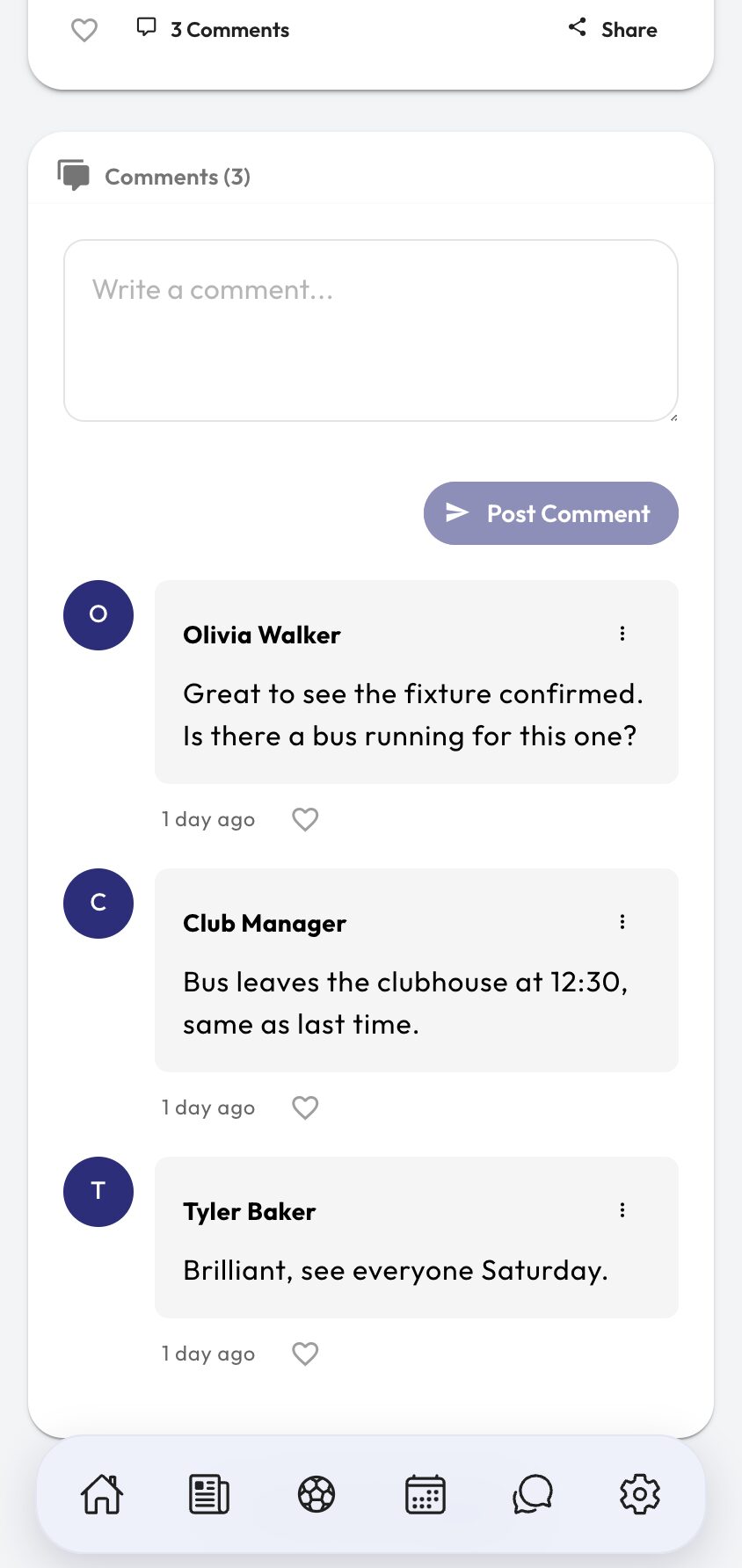


Video tutorial coming soon: building a weekly posting rhythm that survives a busy season.
Questions
About this
guide.
What gets posted automatically?
Fixtures. They appear in the list marked Auto-generated, with the team, opponent, competition and kick-off already filled in, so your feed keeps moving in the weeks nobody has time to write anything.
Who can post?
Anyone with the right club permissions. Posting is a role, not an account — see the club roles and permissions guide for who gets it and how to give it to somebody without handing over the whole club.
Can we add photos and video?
Up to ten images per post at 5MB each, plus one embedded video from YouTube, Vimeo or Veo. The preview shows you exactly how the whole thing will look before it goes anywhere.
Do followers need the app?
No. Posts appear on your public club profile, which anyone can open in a browser. The app adds them to a personal feed of the clubs someone follows — useful, but not required to read you.
Put it into action
Try it with your own squad.
Set your club up in about ten minutes and work through this guide with your real fixtures in front of you.